
Agent Links
Agent Links let administrators bundle a node, list, agent, and prompt into a single link. Anyone with access to that node can click the link and open a pre-configured Gary conversation instantly — context set, agent loaded, prompt ready. No setup required on the user's end.
Agent Links management is available in standard CORAS, CORAS Light, and CORAS Core.
Navigation to AI Settings → Agent Links is the same across all three.
Why This Matters
Teams that run the same Gary workflow repeatedly — a weekly readiness check, a contract review, a data call — no longer have to set up context from scratch every time. The link does it for them.
Admins configure the experience once. Every user who clicks the link gets the same focused, pre-loaded Gary conversation.
Agent Links work on mobile. If someone sends a link via email or embeds it in a dashboard, users can open it from their phone and Gary loads the full configured conversation.
Who This Is For
Administrators — create and manage Agent Links in AI Settings
End users — use links shared by their admin or CS team to open pre-configured Gary conversations
For Administrators: Create an Agent Link
Go to AI Settings
Select Agent Links from the left menu
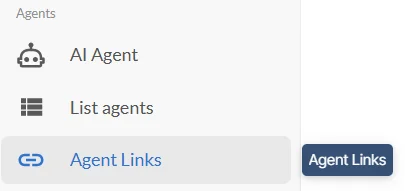
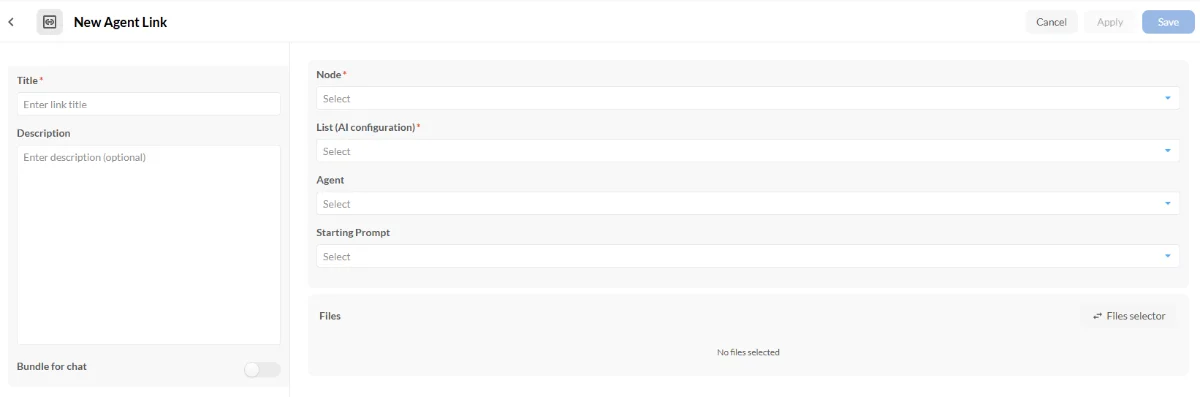
Click + Add Item to create a new link
Complete the required fields:
Title — a descriptive name for the link
Node — the node the conversation will work from
List (AI Configuration) — the list configuration to apply
Add optional fields as needed:
Agent — select the agent to pre-load
Starting Prompt — select a prompt to run automatically when the link is opened
Files — attach any files to include as context
Click Apply, then Save
Click Copy Link to get the shareable URL
Share the Link
Once created, Agent Links are visible to any admin in your tenant's AI Settings. To share with end users:
Paste the link into an email, Slack message, or dashboard
Embed it as a button in a CORAS Custom Canvas dashboard for a one-click entry point
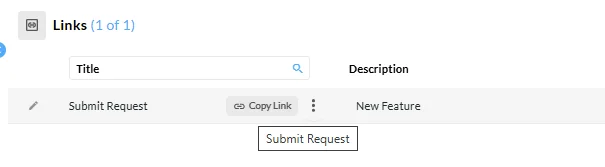
Every time a user clicks the link, it opens a new Gary conversation with the configured node, list, agent, and prompt already applied.
For End Users: Use an Agent Link
If your administrator or CS team has shared an Agent Link with you:
Click the link
Gary opens with context, agent, and prompt already loaded
Review the pre-loaded prompt response or ask a follow-up question
You do not need to configure anything. The link does the setup for you.
Bundled Chats
An Agent Link can be saved as a Bundled Chat — a ready-to-start conversation that appears in the Gary chat interface. Users can browse, like, and launch Bundled Chats without selecting an agent, node, or prompt themselves. The full configuration travels with the link.
Bundled Chats appear in the Gary home screen alongside agents and prompts — up to 6 are shown, with an option to expand the full list.
To save an Agent Link as a Bundled Chat:
Set the title and description on the Agent Link (character limits apply). When the link is published, it becomes available as a Bundled Chat in the Gary interface for your tenant.
What Happens If a Link Is Incomplete
Agent Links can be created without all optional elements. If you open a link that's missing some pieces, CORAS guides you through what's needed:
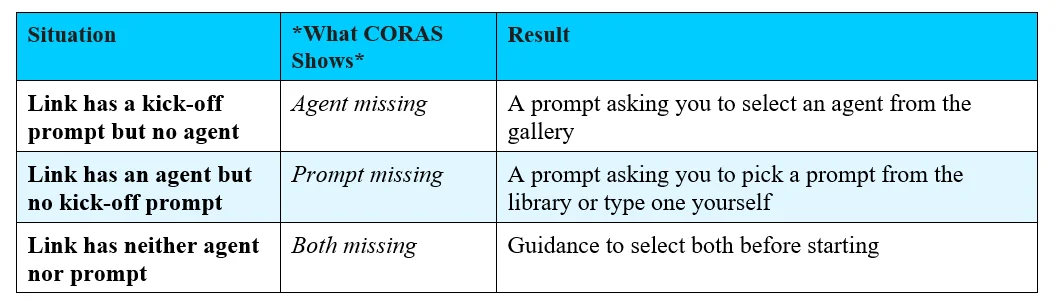
The kick-off prompt is required to start — CORAS will always ask you to supply one if it's missing. Agent selection is suggested but not required.
Tips
Agent Links work best when combined with a Custom Canvas dashboard — embed the link as a button so users have a consistent one-click entry point to their most-used Gary workflow.
Every user who clicks the link starts their own conversation. They are not joining or modifying anyone else's session.
Users need access to the node the link is built on. If a user clicks a link and can't access the conversation, confirm their node permissions with your CORAS administrator.
Agent Links work on mobile. Share them freely — users can open a full Gary conversation from their phone browser.
If you open an Agent Link while signed out, CORAS takes you to the link's destination after you log in — you won't be dropped on a default page. If the link is invalid, you'll see a 404 page after authentication.
FAQ
Can end users create their own Agent Links? Currently Agent Links are admin-level only. End users can use links shared with them but cannot create new ones.
Does clicking a link affect anyone else's conversation? No. Each click starts a fresh, independent Gary conversation for that user.
Can I edit a link after creating it? Yes. Return to AI Settings, locate the link, and edit the configuration. The URL stays the same — any users who have the link will get the updated configuration on their next click.
Get Help
Contact your Customer Success Manager or visit the Customer Resource Center for additional support with Agent Links and AI Settings.