
Find and Replace
Find and Replace allows administrators to bulk-update field values across an entire list — fixing typos, standardizing terminology, or correcting outdated values without touching records one by one. It's found under the Data cleansing section of Admin Settings.
When to Use This
Taxonomy clean-up and terminology standardization across a node
Correcting a field value that appears incorrectly across many records
Enforcing data consistency before running analytics or GARY analysis
Navigating to Find and Replace
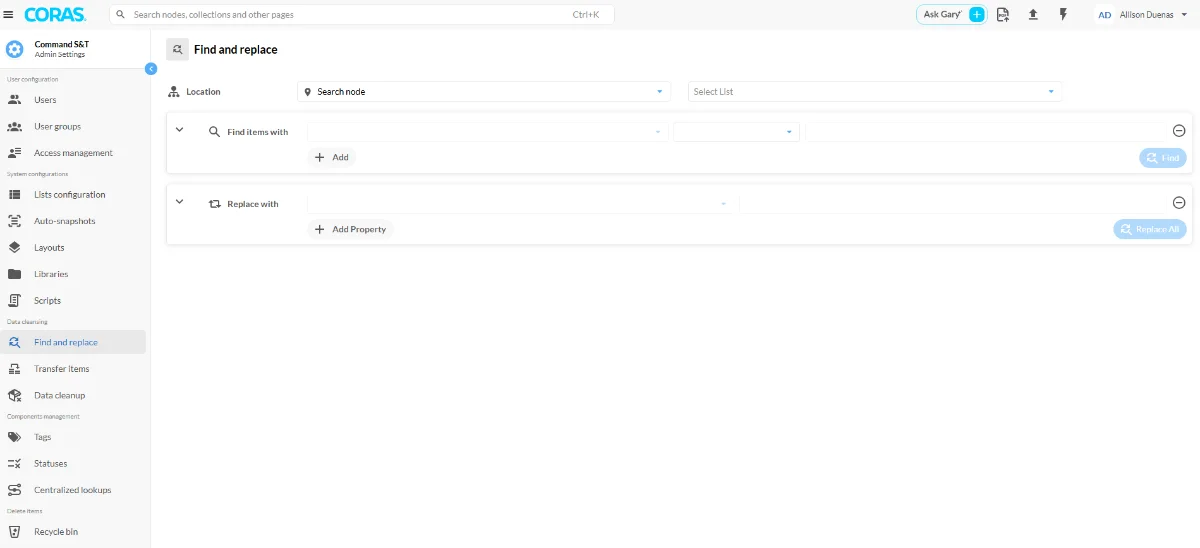
Click your name → Admin Settings → Find and Replace (under Data cleansing).
How to Use Find and Replace
Select a Location
In the Location dropdown:
Choose the collection or node where the list is located.
Begin typing the collection or node name to quickly filter options.
Select the appropriate collection or node from the dropdown.
Select a List
On the right side, select the List that contains the data to be updated.
Only lists tied to the previously selected collection or node will appear.
Define the Find Criteria
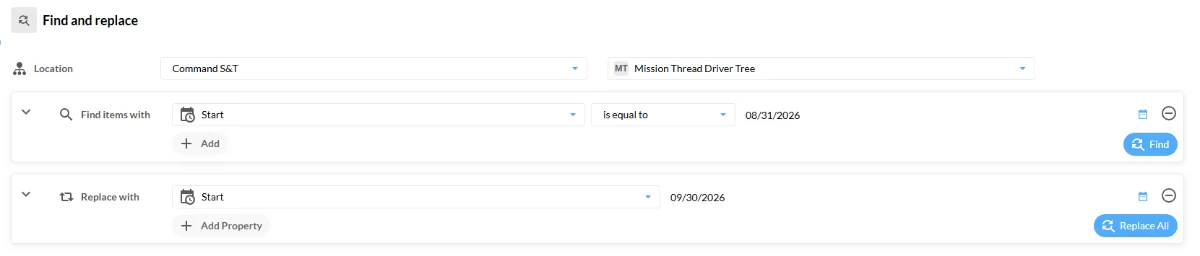
In the Find items with section, configure the conditions that determine which items will be updated:
Field — Choose the field to search within.
Condition — Select one of the following:
is equal to
is not equal to
contains
does not contain
is known
is unknown
Value — Enter the term or value to search for (if applicable based on the chosen condition).
To refine your search:
Click + Add to add another Row (additional condition) or Block (group of conditions) to the initial logic.
Set the Replacement Logic
In the Replace with section, define how the selected items will be updated:
Field — Choose the field you want to update.
New Value — Enter the replacement value that should overwrite the existing data.
To modify more than one field at a time:
Click + Add to add additional field and value pairs.
Apply the Changes
When both the Find items with and Replace with sections are configured as desired:
Review your criteria and replacement values carefully.
Click Replace All to apply the bulk update to all matching records.
Note: Find and Replace actions apply across the selected list and cannot be easily undone, so confirm your settings before running the update.