GARY Chat Features
This article is a reference for the GARY chat interface — what everything on screen does and how to use it. If you're new to GARY and want to know how to start your first conversation, start with Gary AI — Getting Started.
The GARY Home Screen
When you open GARY, the home screen shows:
Up to 3 agents — click any agent to start a conversation scoped to that agent's configuration
Up to 6 prompts — click any prompt to send it immediately
Up to 6 bundled chats — pre-configured conversations your admin has set up (see Bundled Chats below)
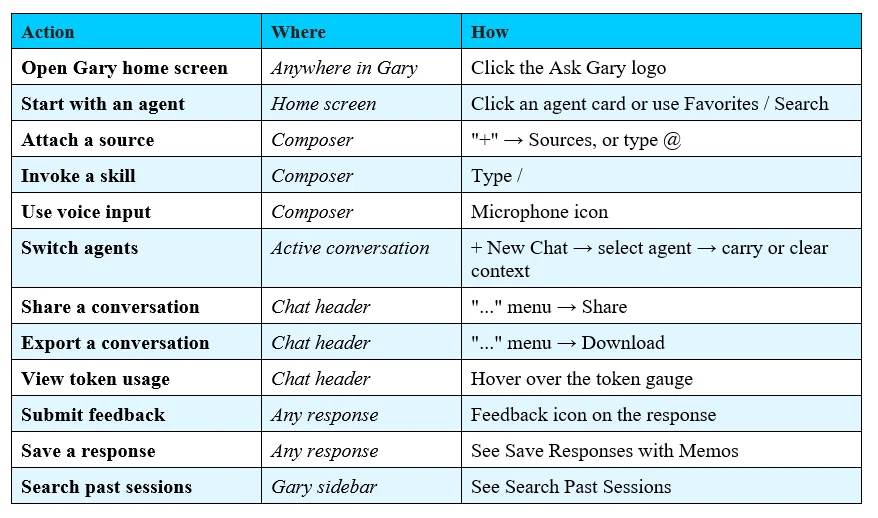
Clicking the Ask GARY logo at the top of the screen returns you to this home screen from anywhere in a conversation.
To see the full list of agents, prompts, or bundled chats, click See all next to any section.
Starting a Conversation
Selecting an Agent
From the home screen, click an agent to start. You can also search agents or open your favorites directly from the new chat screen — you don't need to open the full library first.
Favorites — click the Favorites button to filter to agents you've liked
Search — click the Search button to open the full library with the search bar active. Selecting a result works the same as clicking an agent directly.
Node Selection
After selecting an agent, a node dropdown appears at the top of the conversation. Select the project node whose data you want GARY to work from. The conversation is scoped to that node from the first message.
If you're working from a SmartList, your data context is set automatically when you click Ask GARY next to the search bar — no node selection needed.
Setting a Custom Data Context
You can set your own data context from any new chat without admin help. In the data context selector, choose Custom, pick the lists and fields you want GARY to reference, and optionally add files. CORAS creates or reuses an AI configuration automatically.
Bundled Chats
Bundled Chats are pre-configured conversations your admin has set up as Agent Links — the agent, node, prompt, and files are already configured. Click a Bundled Chat to launch it with everything in place.
The Chat Header
The chat header is hidden until you send your first message — it appears once your conversation starts.
The header shows:
Conversation title — editable; click to rename
Data context — the node and lists GARY is working from, shown on one row
Token usage gauge — a circle that fills as you use tokens. Green (0–75%), amber (75–90%), red (over 90%). Hover or tap for exact counts.
"..." menu — contains Download/Export and Share conversation options
Zoom control — increase or decrease chat content size. Content is constrained to 800px max-width and scales proportionally.
The Chat Composer
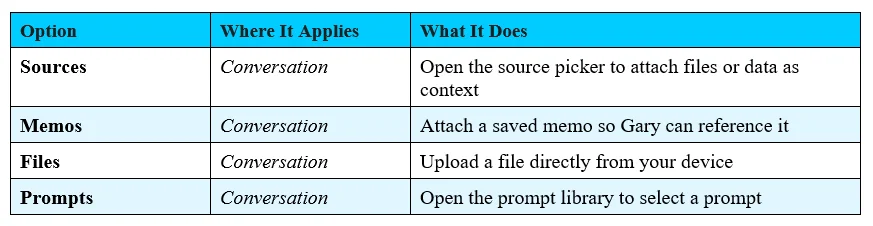
The composer has one "+" menu that gives access to all attachments and context options. Individual icons for separate functions are no longer shown.
"+" Menu Options
Attaching Sources With "@"
Type @ in the composer to open the source picker inline — a faster alternative to the "+" menu when you know what you want to attach.
Invoking a Skill With "/"
Type / at the start of a message, or after a space, to open the skill picker. Start typing to filter skills by name. Press Enter to insert the first result, click any skill to select it, or press Space to dismiss.
The "Add a skill" option from the "+" menu has been removed. Use / or select an agent that has the skill attached.
Voice Input
Click the microphone icon in the composer to speak your message instead of typing. GARY transcribes your speech and places the text in the composer for review before you send it. GARY receives only the transcribed text — not your audio.

Review the transcription before sending, especially for technical terms, acronyms, and proper nouns.
Drag and Drop
You can drag and drop a file directly into the chat window to attach it as a source. Files attached this way are available for the current conversation only.
Sending and Stopping
Click Send or press Enter to send your message. To stop a response in progress, click the Stop button that appears while GARY is generating.
A confirmation appears: "Do you want AI to stop generating the response?"
Stop generating — ends the response immediately. GARY's partial output stays visible.
Continue generating — dismisses the prompt and GARY keeps going.
Keyboard shortcuts in the confirmation: Enter = Stop generating. ESC = Continue generating.
Staging Your Next Message
You don't have to wait for GARY to finish before composing your next message. While a response is generating, type in the composer and attach files — GARY holds your input ready until the current response completes. The send button is disabled while GARY is responding.
Draft Auto-Save
If you start typing a message and leave — switching conversations, closing the tab, or returning on a different device — your unsent draft is saved automatically. When you return, the prompt text and any staged sources are restored.
Drafts are saved per conversation — a draft in one conversation never affects another
Only sources already stored in the system are restored; unavailable sources are skipped
A draft not updated for 7 days is deleted automatically
Attachments still uploading are not saved as part of a draft
The Source Picker
Click "+" → Sources or type @ to open the source picker. The picker is the same size as the prompt selection window and supports:
Sort — sort files by name, date, or other options
Filter — narrow the list to find a specific file
Supported file types for sources: PDF, Word (.docx), PowerPoint (.pptx), Excel (.xlsx), plain text (.txt), Markdown (.md), JSON, and Outlook email (.msg).
Excel files (.xlsx) are ingested through Central Ingestion rather than attached directly — see Getting Data into CORAS.
The context picker (which shows available lists and AI configs) opens on the Favorites tab by default. Switch to the Recent tab to see recently used contexts.
Three types of sources GARY can draw from:
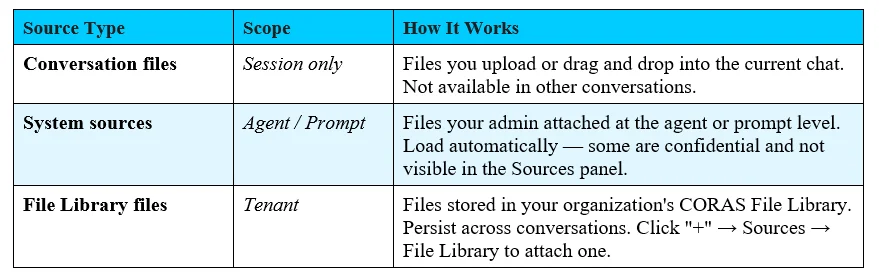
If GARY references information you didn't provide, it's likely drawing from a system source your admin attached to the agent. This is intentional.
File conversion note: When you upload a Word, PowerPoint, or Excel file, CORAS converts it to PDF for AI processing. GARY will refer to it as a PDF in its responses — this is expected. You'll see a notice when the conversion happens.
Oversized Excel files: If an .xlsx file exceeds the size limit, CORAS will redirect you to Central Ingestion (in Nodes) or to create a dynamic source (in CORAS Light) instead of uploading directly.
Switch Agents Mid-Conversation
You can switch to a different agent without starting over. When you start a new GARY session from within an existing conversation, CORAS gives you the option to carry your current context — the conversation history, data references, and findings — into the new session with the new agent.
In your current GARY conversation, click + New Chat.
Select the agent you want to switch to.
Choose whether to carry context from the current conversation into the new session.
Click Start.
Carry context forward when your new agent needs to build on prior analysis — for example, moving from a Data Scientist agent to an Executive Briefing agent to turn findings into a summary.
Start fresh when you want the new agent to approach your data without influence from the previous conversation.
Submit Feedback on a Response
You can submit feedback on any GARY response directly from the chat. Feedback goes to your organization's support team — not to the AI model — and helps improve future answers.
Do not include personal, confidential, or classified information in feedback.
In a GARY chat, click the feedback icon on the response you want to comment on.
Read the disclaimer, type your note, and click Submit.
Feedback is submitted anonymously — your name is not shown to the reviewing team.
Chat History
A conversation is saved to your chat history only after you send your first message. Opening GARY and closing without asking anything leaves no record in history.
Conversations are titled automatically based on your first message. You can rename any conversation by clicking the title in the chat header.
To find a past conversation, use Search Past Sessions. Type a search term, then press Enter to jump directly to the first result.
Sharing and Exporting
Both options are in the "..." menu in the chat header.
Share a Conversation — generates a read-only link to the current conversation. Recipients see the full conversation thread as it appeared when you shared it.
Download / Export — exports the conversation as a PDF or JSON file.
PDF exports — if your tenant has a security classification banner, it appears in the header and footer of every page
JSON exports — a classification disclaimer is added as the first element of the file (if your tenant has a classification configured)
To export a single memo rather than a full conversation, see Save Responses with Memos.
Mobile
GARY's chat interface is optimized for mobile browsers. On mobile:
Icons at the top of the screen stay fixed when the keyboard opens
The composer staging area shows attachment indicators for prompts, agents, and files
The skill picker (/) is not available on mobile — use an agent with the skill attached instead
Quick Reference