
Write GARY's Output to Your Records
GARY can write text output directly into a field in your SmartList. No copy-paste, no switching windows. When you're reviewing an item and GARY generates a summary, recommendation, or analysis, you can save that output straight to the record in one step.
Why This Matters
When GARY's output goes into a field, it becomes part of the record — searchable, filterable, and visible to anyone with access to that list. Your team stops working from conversation exports and starts working from live data.
What You Can Do Here
• Save GARY's generated text directly to any editable field on a record
• Choose how to save: overwrite the existing value or append to it
• Keep GARY's analysis inside your data where it's searchable, filterable, and visible to your whole team
This feature works at the individual record level. You need to be in a GARY conversation opened from a specific item in your SmartList, not from a general tenant-level or list-level chat. If you opened GARY from the main navigation without selecting an item first, this option won't appear.
How to Save GARY's Output to a Field
Open a list item to view its record.
Click Ask GARY inside the record. to start an item-level conversation.
Ask GARY to generate the content you want saved — a summary, recommendation, risk assessment, or any text output.
In GARY's response, click Copy to Field.
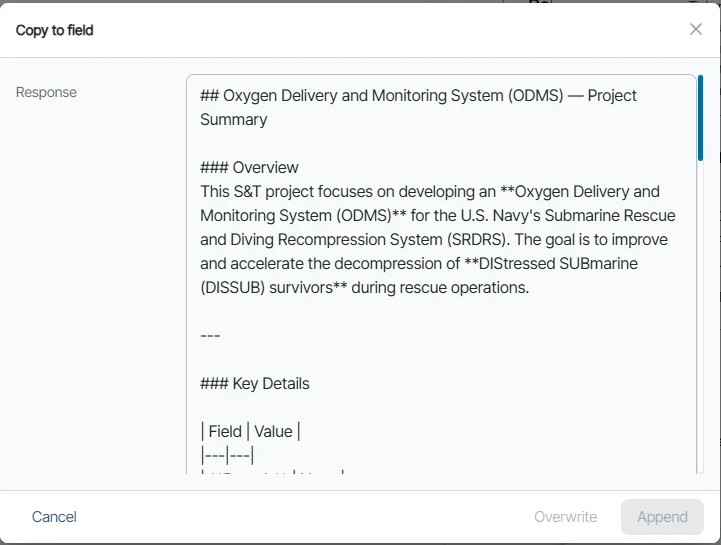
Select the target field from the dropdown. GARY can write to any editable field on the item.
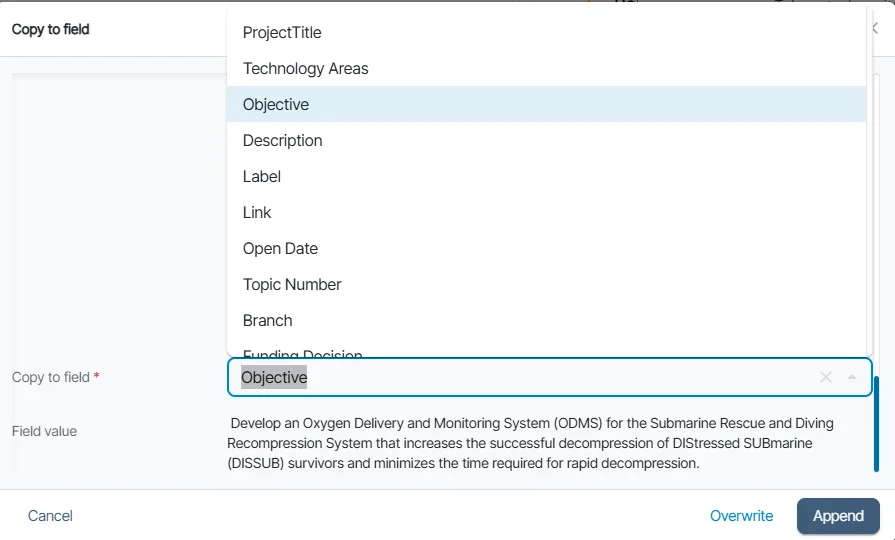
Review GARY's output. You can edit it directly in the save modal before saving.
For text and note fields, choose a save mode:
Overwrite — replaces the existing field value with GARY's output. Use this when you want the field to reflect only the most recent result — for example, a summary that should update each run.
Append — adds GARY's output to the end of the existing value, separated by a line break. Use this when you want to accumulate results — for example, a notes field where each run adds a new entry.
Review and click Save. CORAS validates the value against the field's configuration; if the value is rejected, the validation message is shown so you can correct it and retry.
Supported Field Types, Character Limits, and Validation
GARY can write output to any editable text-based field on the record. This includes single-line text, multi-line text, and rich text fields.
Which save modes are available depends on the field's character limit:
• If GARY's output fits and the existing value plus GARY's output fit within the limit — both Overwrite and Append are available.
• If GARY's output fits on its own but the combined value would exceed the limit — only Overwrite is available. Append is disabled with an explanation.
• If GARY's output alone exceeds the field's character limit — both modes are disabled. Edit GARY's output in the save modal to shorten it, or choose a different target field.
If a save fails validation after editing, an error message tells you what to fix before retrying.
Get Help
Contact your Customer Success Manager or visit the Customer Resource Center for additional support.