
Smart Prompts
Access, pin, categorize, and configure your most-used prompts for faster, more consistent GARY conversations.
Why This Matters
The prompts your team uses most should be one click away — not buried in a library of hundreds. Smart Prompts puts your most relevant starting points at the top of every GARY conversation.
GARY's ability to run code makes his analysis repeatable, not probabilistic. Smart Prompts brings prompts and reusable code snippets together in one place so your team executes the same high-quality analysis consistently, every session.
Administrators control what shows up. The prompts users see in a GARY conversation are curated for their workflow — not the full library. Categories keep it navigable as it grows.
How Smart Prompts Work
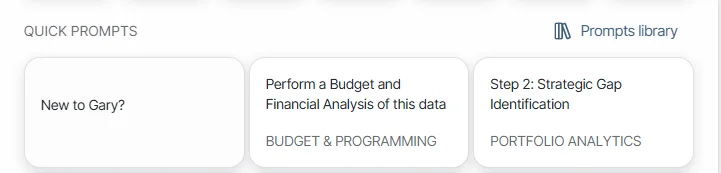
When you open a GARY conversation, you'll see Quick Prompts above the chat window. These are shortcut tiles your administrator has configured at the tenant or agent level. Selecting one loads the full prompt into the chat composer so you can run it immediately or edit it first.
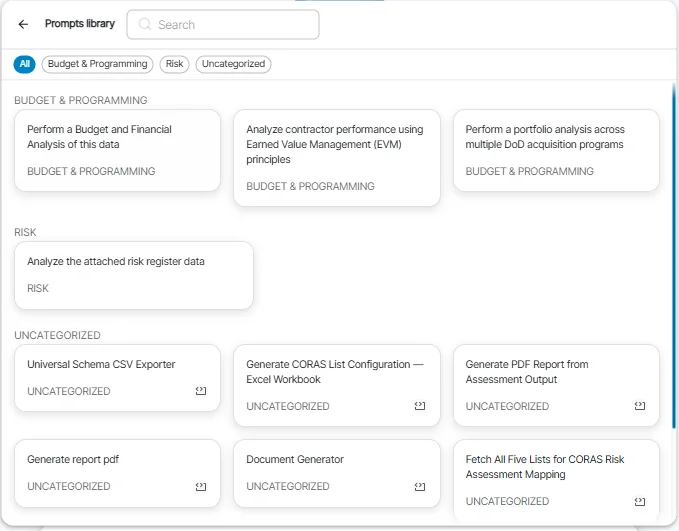
The Prompt Library button (also in the chat window) opens the full library of prompts available to your tenant. You can search by name or filter by category.
What appears in Quick Prompts depends on your configuration:
Default Quick Prompts — the six prompts pinned at the tenant level by your administrator
Agent-specific Quick Prompts — when you select an agent, that agent's pinned prompts replace the default set
Prompt Library button — opens the full prompt library scoped to your current context directly from the Quick Prompts panel
For End Users:
Run a Quick Prompt
Open a GARY conversation
Review the Quick Prompts at the bottom of the chat window — these are curated for your workflow
Click Prompt Library to open the full library. It opens as a popover in the center of the chat; the chat stays visible behind it.
Browse the Full Prompts Library
Use the search box at the top to find a prompt by name
Use the category tags to filter by mission area or role. The tag row scrolls independently — if you see a fade at either end, scroll to see more categories.
Click any prompt to load it into the chat or click outside the popover to close without selecting.
If a bundled prompt requires a list that isn't part of your current chat context, you'll see a message in the chat input area when you try to run it. Only that prompt is blocked — the agent and any other prompts stay available. To run the blocked prompt, switch to a context that includes the required list, or ask your administrator which list it needs.
FAQ
Why do my Quick Prompts change when I select a different agent?
Each agent can have its own set of pinned prompts. When you select an agent, that agent's prompts replace the default set — giving you the most relevant starting points for that specific workflow.
What's the difference between a Quick Prompt and a Kick-off Prompt?
Quick Prompts are a set of suggested prompts that appear at the bottom of the chat window — click one to run it, or browse the full library. A Kick-off Prompt is a single prompt your administrator has designated to open automatically when you start a chat with a specific agent. It pre-populates the composer before you type anything. Quick Prompts give you options to choose from. A Kick-off Prompt gives you a pre-set starting point for that agent.
Why can I see the title of a prompt but not the full text?
Those are locked prompts. Your administrator has configured them to keep the prompt instructions confidential. When you submit, the locked content is combined with anything you've added.
My answers seem to draw on reference material I can't see. What is that?
A locked Smart Agent or Prompt can have confidential global sources attached by your administrator. When you start a chat with that agent or prompt, those sources are supplied to GARY to improve answer quality — but their filenames, contents, and existence are never shown in your chat. This lets your organization use sensitive reference material without exposing it. If a source has been removed, GARY works from the remaining sources.
Can I access prompts outside my current Quick Prompts set?
Yes. Click the Prompt Library button in the Quick Prompts panel to browse the full library available to you.
For Administrators
Pin Tenant-Wide Quick Prompts
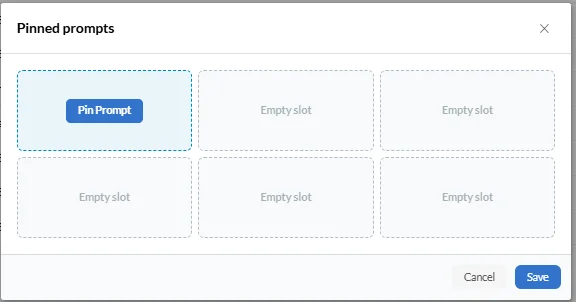
Pinning puts your most-used prompts at the top of the Quick Prompts panel every session. Up to six prompts can be pinned at the tenant level.
Go to AI Settings.
Select Prompts from the menu.
Locate the prompt you want to pin.
Click the pin icon next to the prompt.
Save.
Set Agent-Specific Quick Prompts
Agents can have their own set of pinned prompts that override the tenant-level defaults when that agent is selected.
Go to AI Settings.
Select Agents from the menu.
Open the agent you want to configure.
Navigate to the Quick Prompts or Available Prompts section.
Select the prompts to pin for this agent.
Save.
Designate a Kick-off Prompt
An agent's kick-off prompt opens the conversation automatically when a user starts a chat with that agent. Set it once and every user gets a consistent starting point.
Go to AI Settings and select Agents.
Open the agent you want to configure.
In the Kick-off Prompt field, select the prompt you want to run at chat open.
Save.
To remove the kick-off prompt, clear the field and save. Users who open the agent will start with a blank composer.
Attach Source Files to Prompts
You can attach source files to a Smart Prompt so GARY always has the right reference material when that prompt runs — without the user needing to upload anything themselves.
Go to AI Settings and select Prompts.
Open the prompt you want to configure or create a new one.
Locate the Source Files section.
Click Add File and select the file you want to attach. Supported types: PDF, Word, Excel, .txt, .md, JSON.
Save the prompt.
Files attached at the prompt level are included as context every time that prompt runs, for any user, without requiring manual upload per session.
Categorize Your Prompts
Categories organize your prompt library into groups — budget, finance, risk, contracting, acquisition — so users can filter and find the right prompt quickly.
Open the prompt in edit view.
Click the Category dropdown.
Select the appropriate category.
Save.
For guidance on creating and managing categories, see Manage Categories.
Get Help
Contact your Customer Success Manager or visit the Customer Resource Center for additional support with Smart Prompts and GARY configuration.